Notes on building AI products
Guide: working with Tacit
In DSH-projects you mostly deal with two things: the personal assistant, Tacit, and one board called Waiting on you. Here is a first session, step by step. The interface is in Chinese for now; the labels below are translated.
1. Install
You need DeepSeek Harness 0.2.x and Node 24 or later. If you don't have DeepSeek Harness yet: npm install -g @deepseek-ai/dsh.
git clone https://github.com/hovocope135-tech/DSH-projects
cd DSH-projects/plugin
dsh plugin --profile web add "$(pwd)"
dsh --profile web
Open the address it prints. The sidebar gains a personal assistant and projects. Models follow your DeepSeek Harness configuration.
Optional: with the Claude Code or Codex command line installed, tasks can be switched to them; with the Feishu command line (lark-cli) installed and authorised, Tacit can read your Feishu messages, read-only.
2. Meet Tacit
The first time, you land in the personal assistant's conversation, with Waiting on you on the right. The assistant is called Tacit by default. A small two-step window follows: pick up to three personality traits, give it a name, and set a shortcut to call it up (⌥M by default). Skip it if you like; it can be changed later under assistant settings, personality and shortcut.
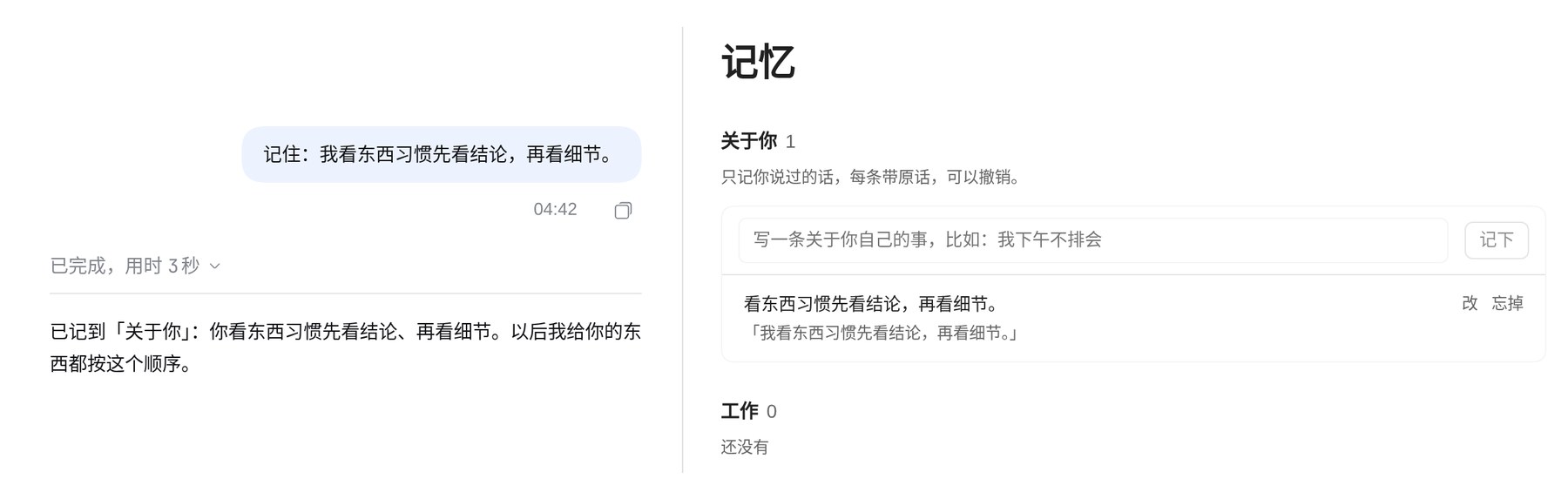
Start by telling it: "Remember: I like to read the conclusion first, then the details." It goes into About you with your own words, and every conversation knows it from then on.
3. What you can ask Tacit to do
Tacit doesn't work inside projects; it watches all of them. In the personal conversation it does what you explicitly ask:
| You say | What it does |
|---|---|
| "Make me a project: hiring a front-end engineer" | Creates a project |
| "Give this to the hiring project: …" | Hands your own words to the project as written, which opens a task; anything it adds is marked separately |
| "What's waiting for me?" "What happened today?" | Answers from the board and the timeline, each item with its source |
| "What was just said in the marketing group?" | Reads the Feishu messages it has collected |
| "Tell the interview-questions task to add a CSS question" | Passes the message to that task |
| "The second option is fine" | Answers a decision that is waiting on you |
| "Accept it" | Tells you what changed first, and accepts after you reply "confirm" |
| "Remember: …" | Adds it to About you, with your words |
| "Look at that contract on my computer" | Reads the folders you allowed, read-only |
| "Use a cheaper model for this project from now on" | Records it as the project's model strategy, then switches models accordingly |
| "Delete that test project" | Moves it to the trash, where it can be restored at any time |
It doesn't send messages in your name. Without a word from you it makes no decision and accepts nothing.
4. Hand over the first job
- Click + next to projects in the sidebar and give the project a name. You can give it a folder for the executor to work in; otherwise a workspace with the same name is created. You can also just ask Tacit to make a project.
- In the project conversation, say one sentence that makes three things clear: what to do, where the context is, and what the standard is. For example: "Using the job description, write a second-round interview set, interview.md: 3 questions on motion and interaction detail, each with scoring points." You can say the same sentence to Tacit, and it hands your words to the project unchanged.
- The project assistant starts on whatever it can and asks about what you left unclear. Just answer.

5. See how far a task has got
The tasks it opened are listed under project tasks on the right. Click one and the task details appear: background and your own words, what counts as done, outputs, files read, and progress. This is the context pack of that job.
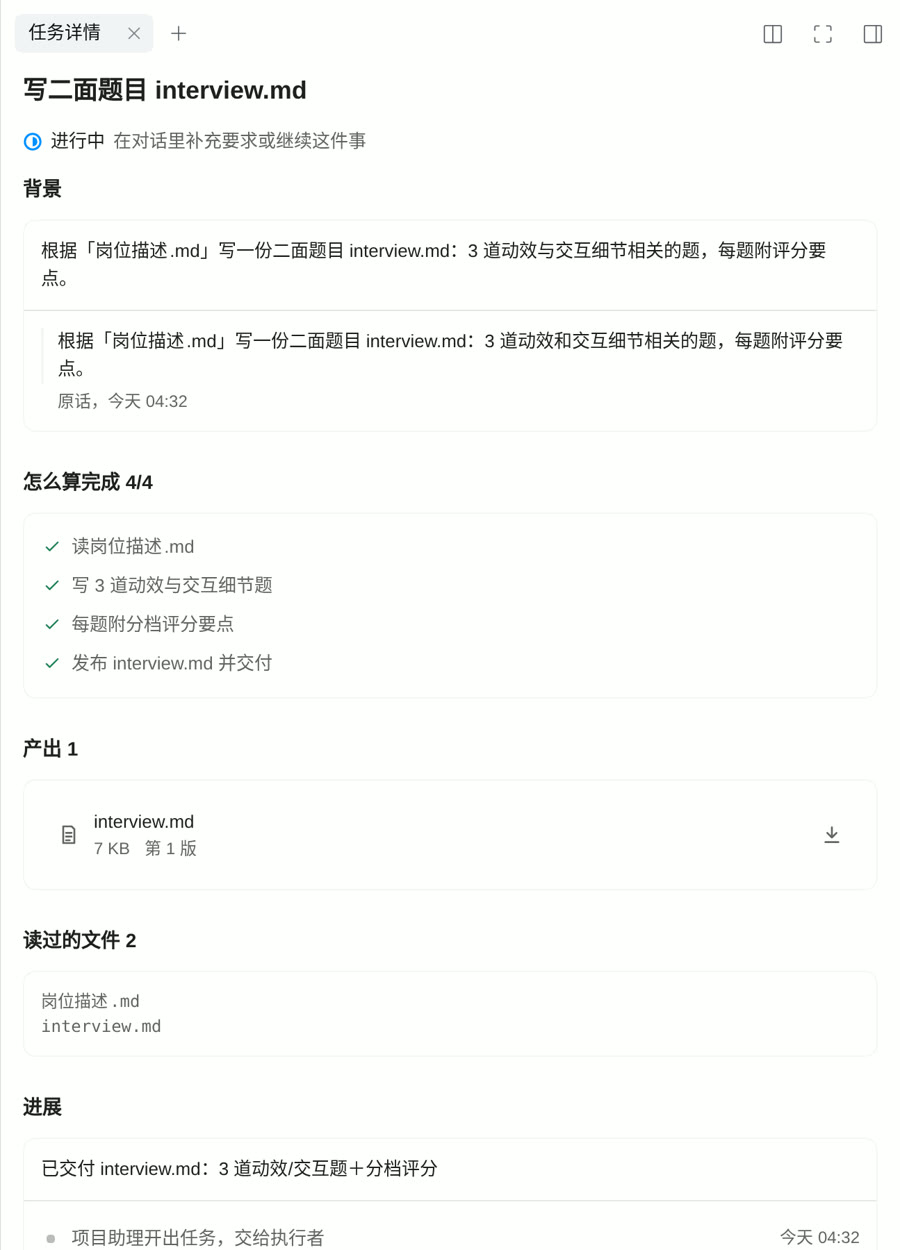
To switch the executor: task details, execution, execution mode. Switch between DeepSeek Harness, Claude Code and Codex; the model can be changed on its own too. To do it yourself, click take over, and hand back when you are done. Note: Claude Code and Codex run as executors without permission prompts and without a sandbox; they can read and write whatever your OS user can.
6. Accept, and make the calls
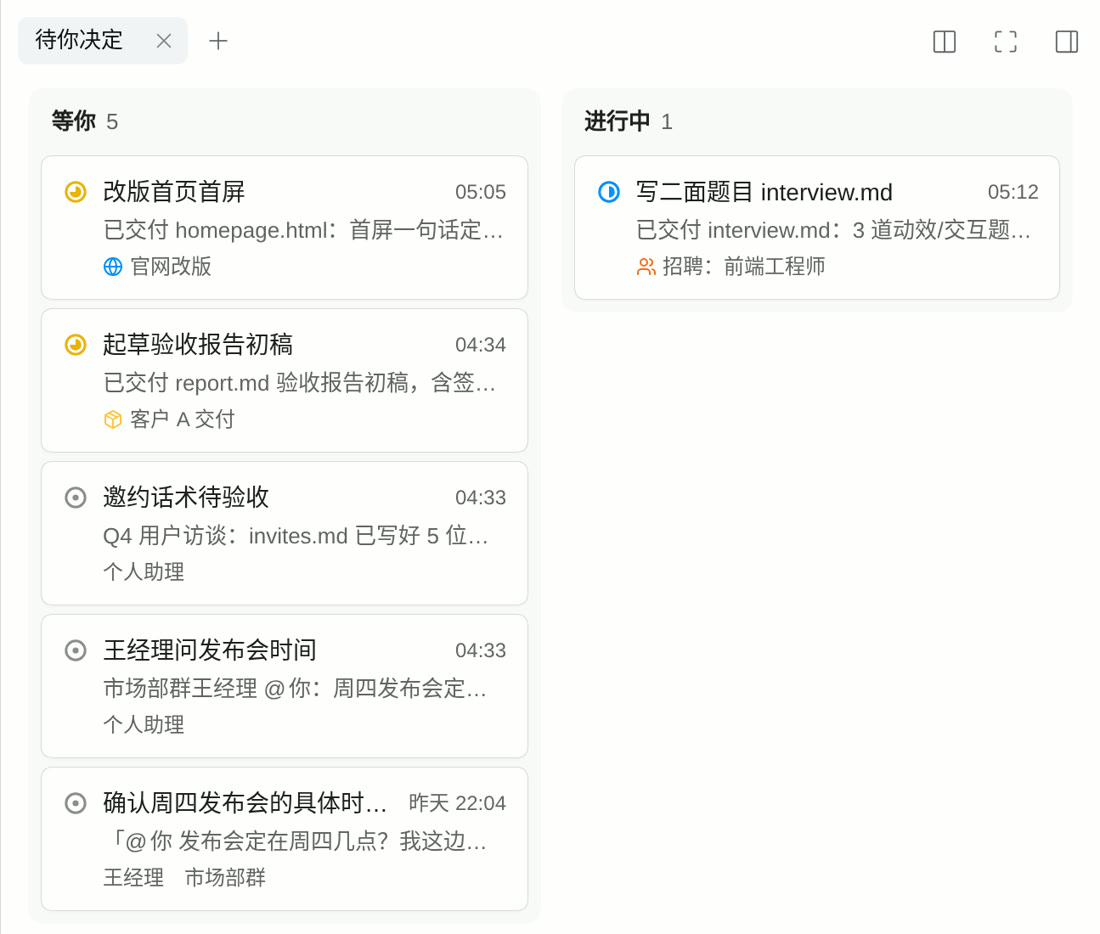
When a task is done it appears in the first lane of Waiting on you.
- Click the card to open the task. Under delivery, web pages render in place, images show directly and documents are previewed.
- Happy with it: click accept, or tell Tacit "accept it".
- Want changes: click request changes on a file. The composer is pre-filled with the file name; write what to change.
- When an executor needs a decision from you mid-way, it gives you a card of options with the recommended one marked; if none fits, just type your answer.
7. Waiting on you
One board, three lanes: waiting on you, in progress, done today. Tasks, Feishu messages waiting for your reply and reminders from Tacit are all cards. Click a task card to open the task; click a message card and a reply is drafted in the composer for you to edit and send.
8. Let context come in by itself
All of these are read-only and can be turned off at any time:
- Feishu: assistant settings, live Feishu reading. Once authorised, Tacit can read messages and documents but can't send. When someone is waiting for your reply, it shows up on Waiting on you; whether to be reminded proactively is a separate setting.
- Files on your computer: assistant settings, computer files. Choose specific folders or all files, or pause it.
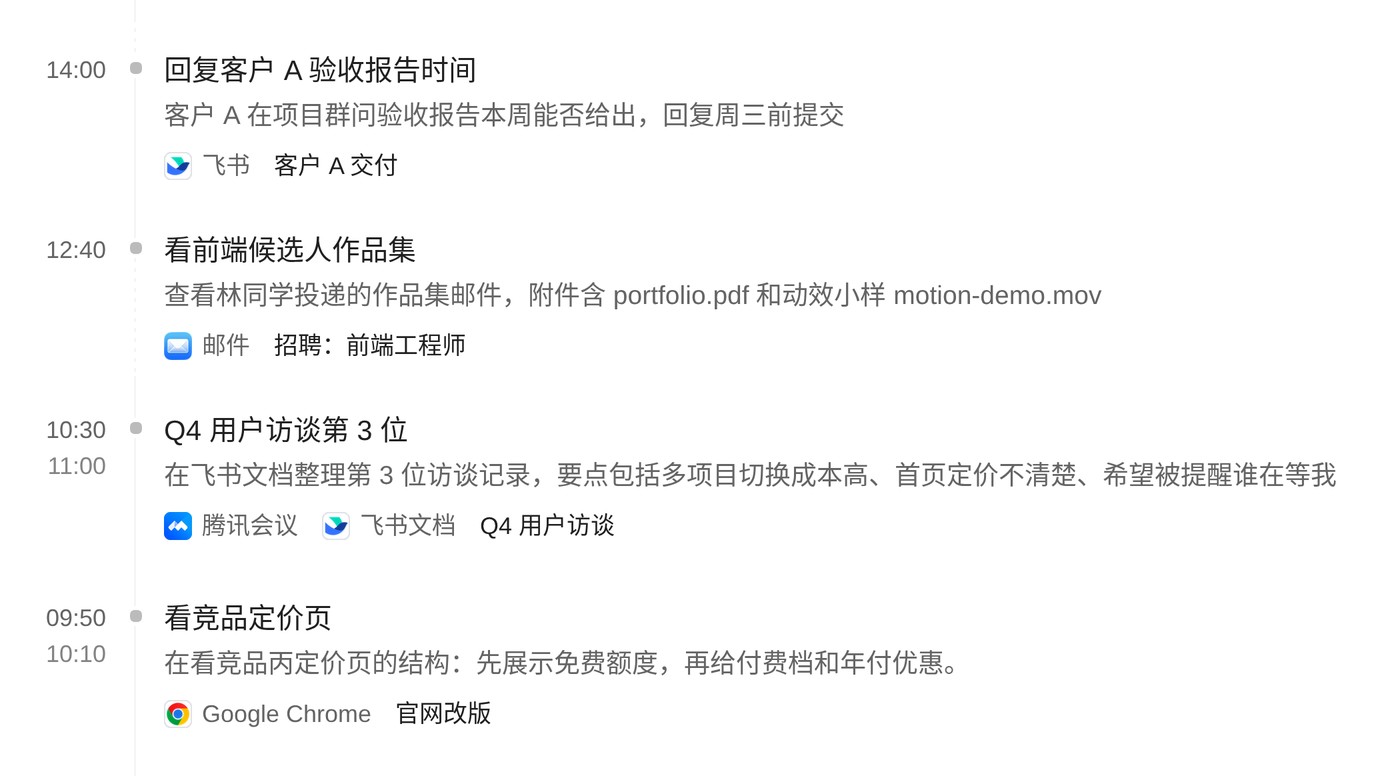
- Screen: run the DSH-projects device program on a computer that has Screenpipe. It reads the text of the windows once a minute and sends text only; screenshots stay on the computer. Every 10 minutes the activity is organised into a timeline, filed under a project when it is clear which one.
9. Memory, models, and the night review
- Memory: assistant settings, advanced, memory. Every item in About you carries your words and can be edited or forgotten; every item in Work carries its source.
- Assistants and models: assistant settings, advanced, assistants and models. One page per assistant: when it wakes, what it reads each turn, which model it uses. A project's model strategy can be written in one sentence.
- The night review: when the computer is idle at night, Tacit reviews the day and leaves up to three items in the first lane for the morning: one thing that could be done, one worth a look, and one remark, each with its source, plus a diary page.
- Working instructions: when you raise the same problem after delivery three times, it drafts new working instructions overnight. In the morning you choose: the new version, one trial run, or the old version.
10. When something goes wrong
| What you see | What to do |
|---|---|
| The page says it can't reach the service and is reconnecting | The service stopped or is restarting. When it comes back the page reconnects by itself; no need to log in again. |
| A task is stuck on failed | Open the task and read the last progress entry. It is usually a model or network error; tell it to carry on. |
| Nothing happens after switching to Codex | Codex has to be logged in on this machine itself. Without that it reports an error and stops. |
All the data stays on the machine that runs it. Feishu and your files are read-only, and only the parts you allow. Deleting a project moves it to the trash, where it can be restored at any time.